Skip to content

Hornil StylePix

Hornil StylePix

The night sky and the moon

1. New Image…: Width: 800, Height: 480, Background color: Black2. Add Noise: Amount: 100, Check Monochromatic3. Level…: Input Levels: 230, 0.5, 2554. Add a image layer5. Gradation Fill: Type: Linear, Background to transparent6. Add Image Layer7. Gradation Fill: Type: Radial,… Read More »The night sky and the moon

Cloud Brushes

Heare are two cloud brushes. Download Cloud.zip Open Brushes folderTo check your brushes folder:Select the brush preset tab and click the options button(▼) and choose Open File Location.ex) Windows 7: C:UsersUserNameAppDataRoamingHornilStylePixProLibraryUserBrushes  Extract Cloud.zip to Cloud.ex) Windows 7: C:UsersUserNameAppDataRoamingHornilStylePixProLibraryUserBrushesTree  Open StylePix… Read More »Cloud Brushes

Two styles (Fantastic & Green)

To use this two styles Open the attached file. Select “Select And Move” tool Select a desire styled layer. Select “Style” tool Choose Preset tab and click add(+) icon.

Leaf brushes

Heare are some leaf brushes. Download Tree.zip Open Brushes folderTo check your brushes folder:Select the brush preset tab and click the options button(▼) and choose Open File Location.ex) Windows 7: C:UsersUserNameAppDataRoamingHornilStylePixProLibraryUserBrushes  Extract Tree.zip to Tree.ex) Windows 7: C:UsersUserNameAppDataRoamingHornilStylePixProLibraryUserBrushesTree  Open StylePix… Read More »Leaf brushes

Hornil StylePix Keyboard Shortcuts

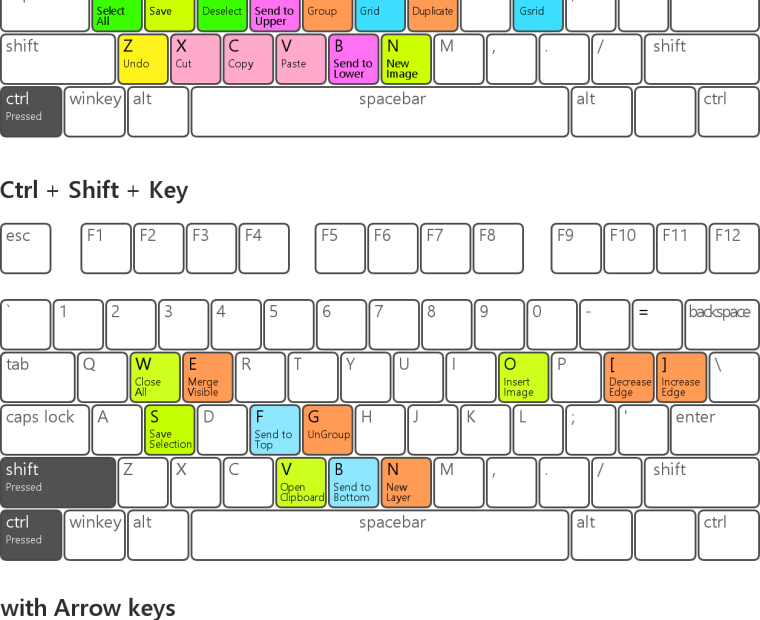
All the tools are accessible by following: Many commands are accessible via the keyboard. Hornil StylePix do not distinguish Uppercase or lowercase letters. For example, you can access the Select And Move tool via either s key or S key.